Events are classified into various types based on the kind of visitors they have. Visitors come from different backgrounds. That is why an event organizer or admin must ensure that they make a lot of event categories available to their clients. This helps registered visitors or attendees quickly find their preferred events using filters.
To fulfill this purpose, WP Event Manager gives organizers the right to add, edit, and pick categories by clicking on the event categories section, which is placed under the event listing.
- Log in to your WordPress admin panel.
- Go to Event Manager >> Event category.
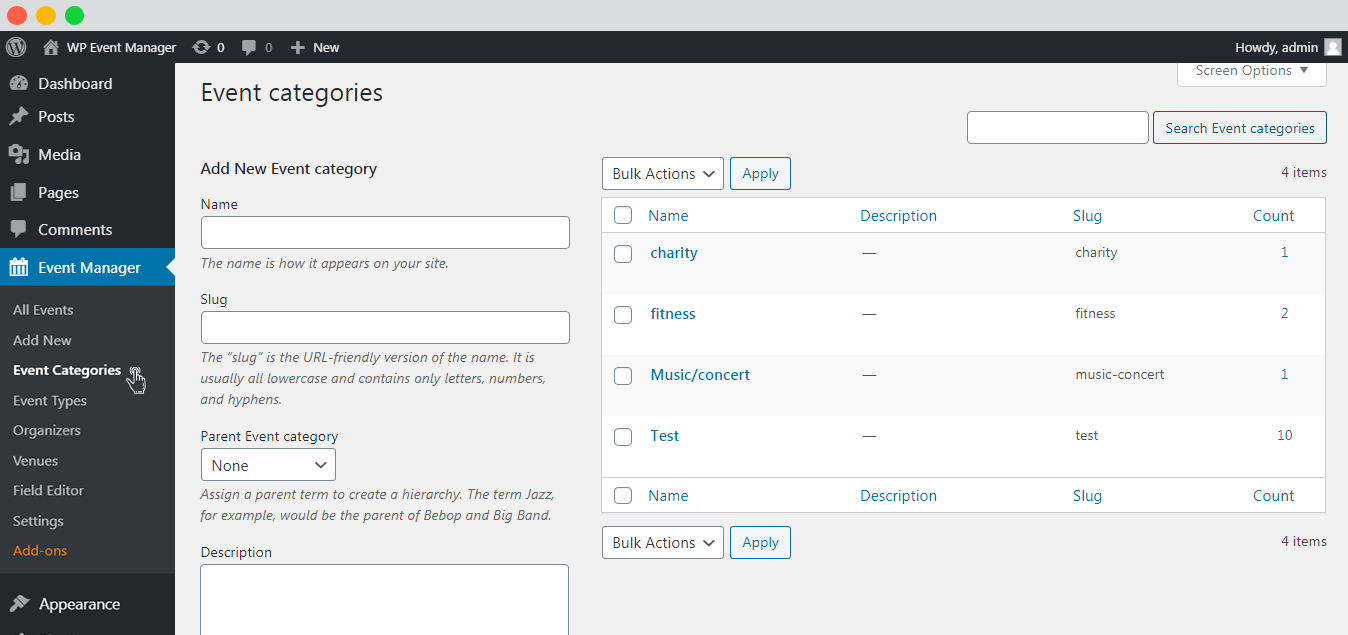
- This page provides you with the list of categories that are already available. If you want to add a new category, complete the details on the page, and the new category will be added to the list of categories.

The list of these Event Categories can be easily accessed on the frontend. The home page has the option to filter event categories. When a person selects a specific event category, only events related to that particular category are displayed to them.
Event Organizers can post events from the frontend as well. In that case, they can link their event to the categories that are already present in the backend.
To perform the task, the following are the steps they need to take:
- Event organizers can submit their events from the frontend without logging in. All they need to do is fill out the event submission form with the necessary details.
- The user needs to fill in a form with the details of the event. He or she will also get an option to select an event category from the Category List.
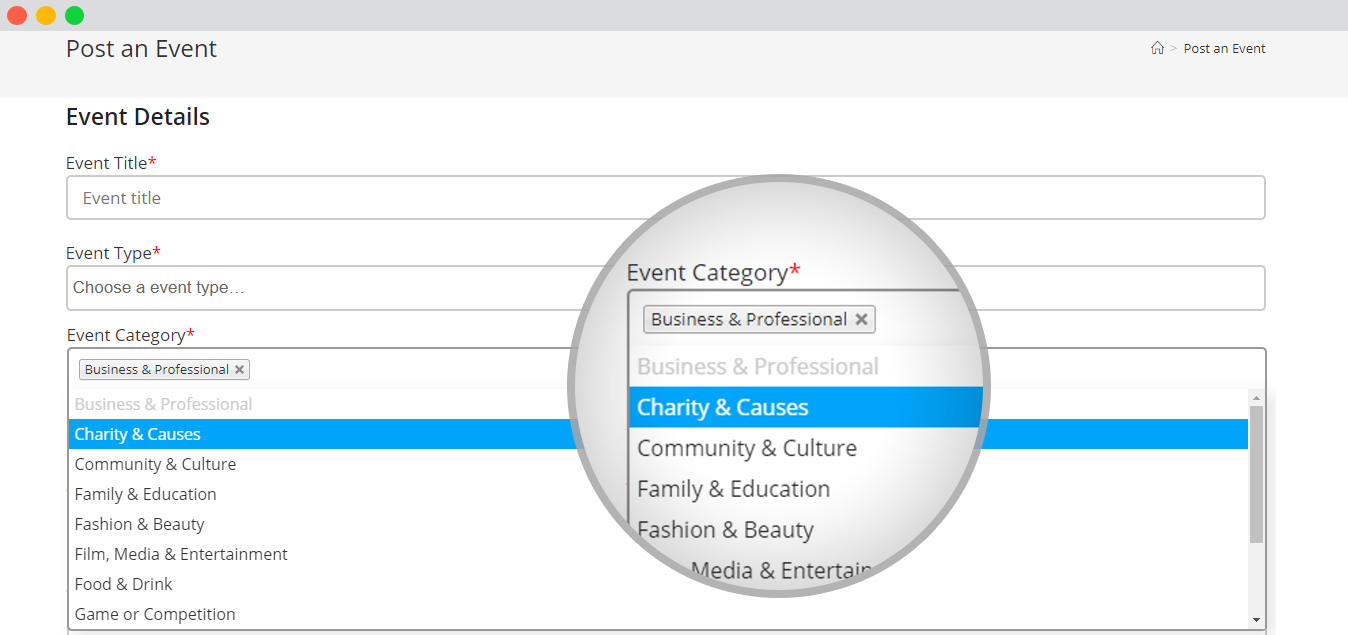
- All the event categories registered in the admin panel are displayed at this stage, allowing the organizer to pick one that is suitable for their current event post.
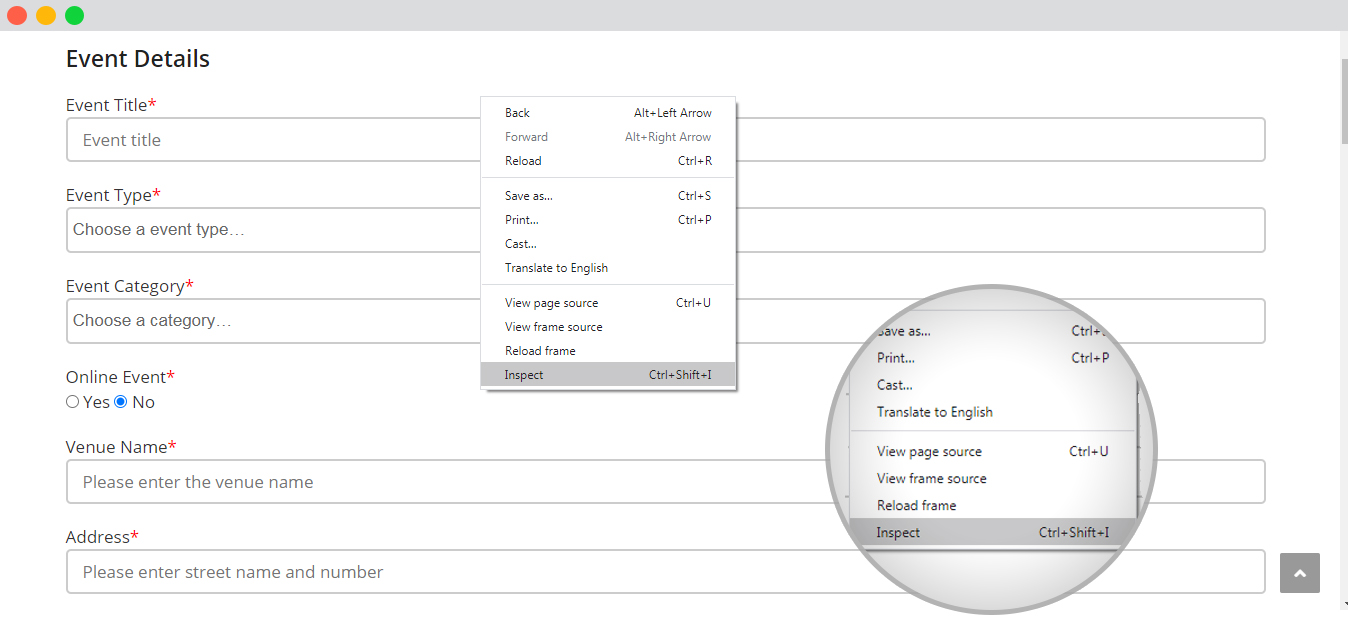
- In case an event category that is available on the admin panel does not appear on the frontend, the user needs to go to the “Inspect Element” option.
- A user can get access to the Inspect Element option in mainly two ways.
- By pressing the F12 key.
- By right-clicking and selecting the Inspect Element Option.
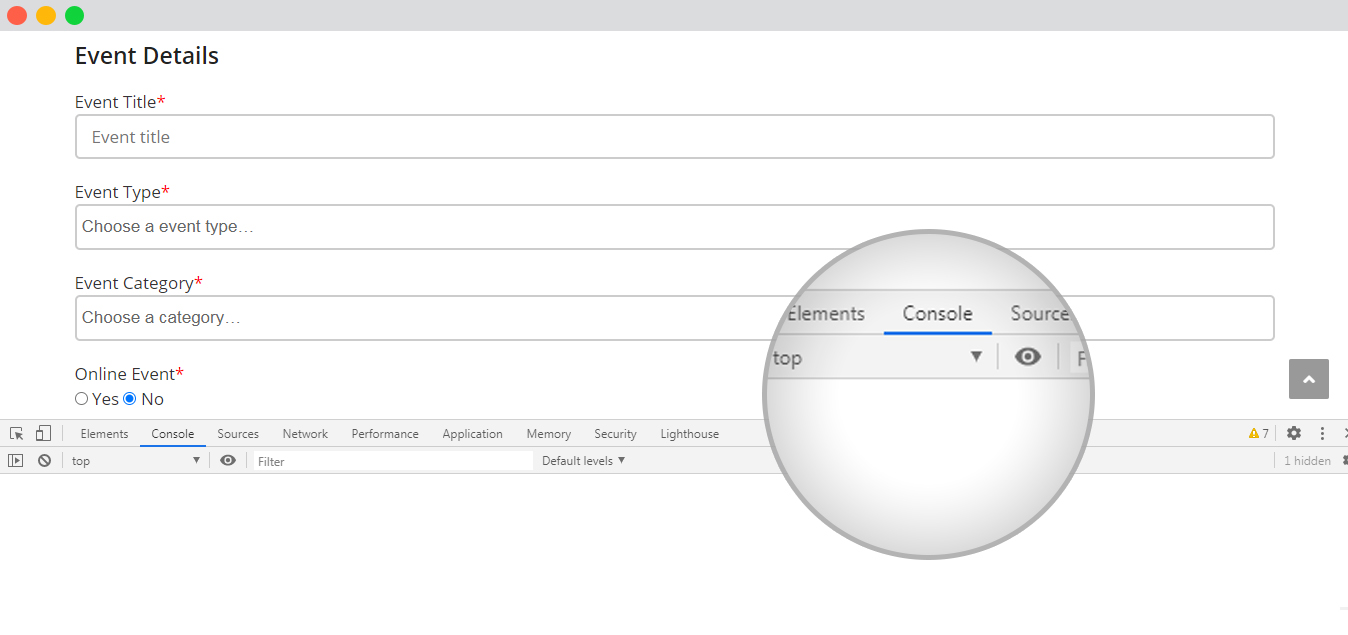
- The user needs to fix the JavaScript error that appears under the Console section in Inspect Element.
- However, if the user has issues solving it, our support team is there to assist them. The user can create a support ticket or contact our support team.